
How To Track Lawn Mowing On Apple Watch?
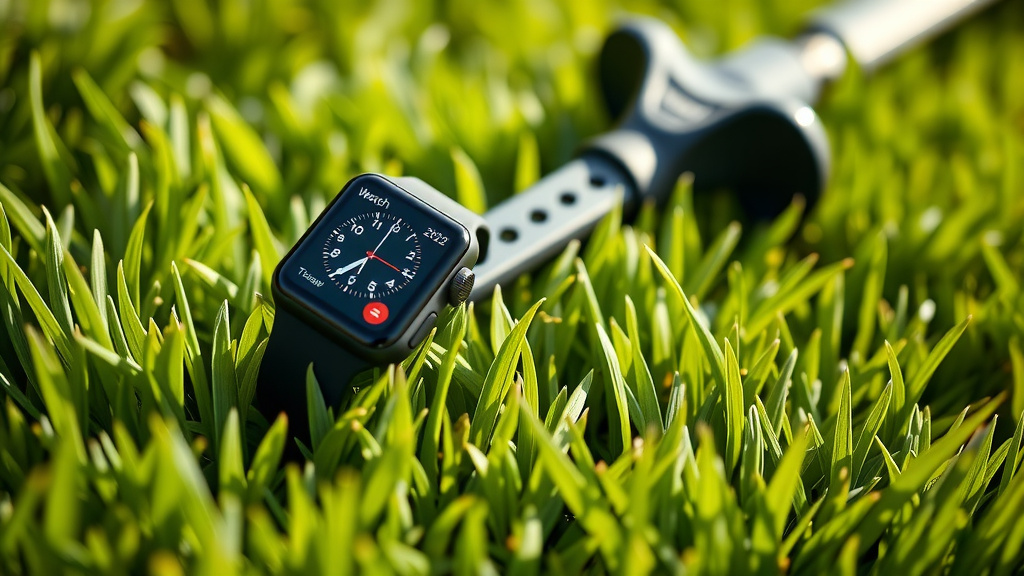
You can track lawn mowing on your Apple Watch by starting an “Outdoor Walk” workout or using a dedicated third-party app like WorkOutDoors to log your activity and map your path.
This method allows you to monitor duration, calories burned, heart rate, and even the distance covered while you meticulously mow your lawn.
TL;DR: Here’s the quick rundown on tracking your lawn mowing with an Apple Watch:
- Use the native Outdoor Walk workout for basic stats like duration and calories.
- Explore third-party apps for detailed mapping and advanced data.
- Customize your watch’s workout metrics to prioritize what matters to you.
- Always ensure your watch is charged and worn comfortably for accurate readings.
- Tracking turns a routine chore into a measurable fitness activity, adding motivation.
How To Track Lawn Mowing On Apple Watch?
Tracking your lawn mowing on an Apple Watch is simpler than you might think, mainly using the built-in Workout app or specialized third-party solutions. It transforms a household chore into a measurable fitness activity, helping you stay active and engaged.
Why Track Your Lawn Mowing?
You might wonder, “Why bother tracking my lawn mowing?” Well, it’s more than just cutting grass. It’s a physical activity that can contribute to your daily step count and calorie burn. Many people find tracking helps them stay motivated and see the tangible benefits of their efforts.
Research suggests that moderate activities, like pushing a lawn mower, are excellent for cardiovascular health (American Heart Association). Knowing you’re getting a good workout can make the task feel less like a chore and more like a fitness session.
Using Native Apple Watch Workouts
Your Apple Watch comes with a powerful Workout app built right in. While there isn’t a specific “Lawn Mowing” option, the “Outdoor Walk” workout is the perfect substitute. It captures all the essential metrics you’ll want to see.
This approach is straightforward and requires no extra downloads. You get immediate feedback on your progress, which is a great motivator.
Setting Up an Outdoor Walk
To begin tracking, open the Workout app on your Apple Watch. Scroll through the options until you find “Outdoor Walk.” Tap on it to start a new workout. You can also set a specific goal, like a calorie target or a time limit, if you prefer.
Once you start, your watch begins recording various data points. Remember to keep your watch securely on your wrist for the best heart rate accuracy.
Understanding Your Metrics
During an Outdoor Walk workout, your Apple Watch displays several key metrics. You’ll see your workout duration, active calories burned, total calories burned, and your heart rate. If you have GPS enabled, it will also track your distance and map your route.
This information gives you a clear picture of the physical demands of your lawn care routine. It’s quite satisfying to see how much work you’ve done!
Exploring Third-Party Apps
While the native workout app is good, some users might want more specific details, especially mapping their exact mowing path. This is where third-party apps shine. They often provide richer data visualization and specialized features.
These apps typically sync with Apple Health, so all your fitness data remains centralized. Many experts say that using dedicated apps can provide a deeper understanding of your activity patterns.
Popular Options for Tracking
Apps like WorkOutDoors are favorites among those who want detailed map tracking. This app lets you see your exact route around the lawn, showing where you’ve mowed and any spots you might have missed. Other general fitness tracking apps might also offer similar mapping features.
You can find these apps in the App Store on your iPhone. Always check reviews to find one that best fits your needs and provides a user-friendly experience.
Customizing Your Apple Watch Display
Did you know you can customize what metrics appear on your watch screen during a workout? This feature is incredibly helpful for focusing on what matters most to you while mowing.
You can change these settings in the Watch app on your iPhone under “Workout” > “Workout View.” Tailoring your display can make tracking much more efficient and less distracting.
What Metrics Matter Most?
When mowing, you might prioritize different metrics. Some people focus on duration, aiming for a consistent time. Others might want to track heart rate zones to ensure they are getting a moderate cardio workout. Calories burned is another popular metric for those watching their daily expenditure.
Consider what motivates you most. For instance, if you’re pushing a heavy mower, distance covered might be more interesting than steps.
Tips for Accurate Tracking
Getting accurate data from your Apple Watch requires a few simple steps. Proper watch placement and battery management are key to consistent and reliable readings.
Ignoring these small details can sometimes lead to incomplete or misleading workout summaries. We found that a little preparation makes a big difference.
Wearing Your Watch Correctly
For the most accurate heart rate and activity tracking, wear your Apple Watch snugly on top of your wrist. It shouldn’t be too tight to cause discomfort, but not so loose that it slides around. The back of the watch needs good contact with your skin.
Many guidelines point to this proper fit as crucial for sensor performance (Mayo Clinic). A slightly loose watch might struggle to read your pulse consistently.
Battery Life Considerations
Lawn mowing can sometimes take a while, especially for larger properties. Workouts, especially those using GPS, consume more battery. Make sure your Apple Watch is sufficiently charged before you head out.
If you’re concerned about battery life, you can enable “Power Saving Mode” in the Workout app settings. This turns off the cellular data and heart rate sensor for “Outdoor Walk” workouts, extending battery life, though it will impact some metrics.
Analyzing Your Mowing Data
After your mowing session, your workout data is saved in the Activity app on your iPhone. Here, you can review your session in detail, see your route, and check all your metrics. It’s like a digital journal of your efforts.
This data isn’t just numbers; it’s a testament to your hard work. It also helps you spot trends in your activity.
Comparing Efforts Over Time
One of the cool things about tracking is the ability to compare your workouts. You can see if you’re mowing faster, burning more calories, or covering more ground over time. This insight can be surprisingly motivating.
Perhaps you’re getting more efficient, or maybe your lawn is just getting bigger! Either way, the data offers a clear historical record.
Here’s a quick checklist to get you started with tracking your lawn mowing:
- Charge your Apple Watch fully.
- Wear your watch snugly on your wrist.
- Open the Workout app on your watch.
- Select “Outdoor Walk” and tap to start.
- Mow your lawn with purpose!
- End the workout when finished.
- Review your data in the Activity app.
Turning Chores Into Fitness Goals
By tracking your lawn mowing, you’re essentially turning a necessary chore into a tangible fitness activity. It adds a new layer of purpose and can make the task feel more rewarding.
You’re not just maintaining your yard; you’re also maintaining your health. How often do you get a two-for-one deal like that?
| Tracking Method | Pros | Cons |
|---|---|---|
| Native Outdoor Walk | Easy to use, no extra downloads, basic fitness metrics. | No specific “mowing” category, map might not be precise for lawn shape. |
| Third-Party Apps (e.g., WorkOutDoors) | Detailed mapping, customized data fields, specialized features. | Requires download, may have a cost, can be more complex to set up. |
Conclusion
Tracking your lawn mowing on your Apple Watch is a simple and effective way to monitor your physical activity. Whether you stick to the native “Outdoor Walk” workout or choose a feature-rich third-party app, you’re transforming a regular chore into a quantifiable fitness effort. Remember to wear your watch correctly, keep it charged, and use the data to motivate yourself. Your lawn will look great, and you’ll know exactly how much work you put into it!
FAQ: Can I use “Other” workout for mowing?
Yes, you can use the “Other” workout type for mowing. However, “Outdoor Walk” is generally better because it automatically activates GPS for distance tracking and calorie calculation, which is more relevant for activities like mowing. “Other” workouts tend to give a more generic calorie estimate.
FAQ: Will mowing count towards my activity rings?
Absolutely! Any workout you track on your Apple Watch, including lawn mowing, contributes to closing your Move, Exercise, and Stand rings. Seeing those rings close throughout the day can be a great visual motivator for staying active.
FAQ: How accurate is the calorie count for mowing?
The calorie count on your Apple Watch is generally quite accurate for activities like walking, especially when your heart rate is consistently read. Factors like your age, weight, and heart rate are considered. While not perfectly precise for every individual, it provides a good estimate of your energy expenditure.
FAQ: Can I track my route if I don’t have cellular on my Apple Watch?
Yes, your Apple Watch uses its built-in GPS for route tracking, not cellular data. As long as your watch has GPS capabilities (Series 2 and later), you can track your route without needing an active cellular plan or even your iPhone nearby.
FAQ: What if I stop for a break during mowing?
If you take a break, your Apple Watch might automatically pause the workout after a short period of inactivity. If not, you can manually pause the workout by swiping right on the screen and tapping “Pause.” Remember to resume it when you start moving again!
